
Deploy on Hyper-V
Deploy the AI Platform virtual appliance from an image on Hyper-V using the Hyper-V manager.
Before You Begin
- Access Hyper-V Manager with permission to create new virtual machines.
- Download the appliance archive from the cloud Console.
- Use a host that meets the machine specifications.
Step 1: Download the Appliance Image
Download the Hyper-V zip file containing the virtual appliance image from the cloud Console, under the Appliances menu.
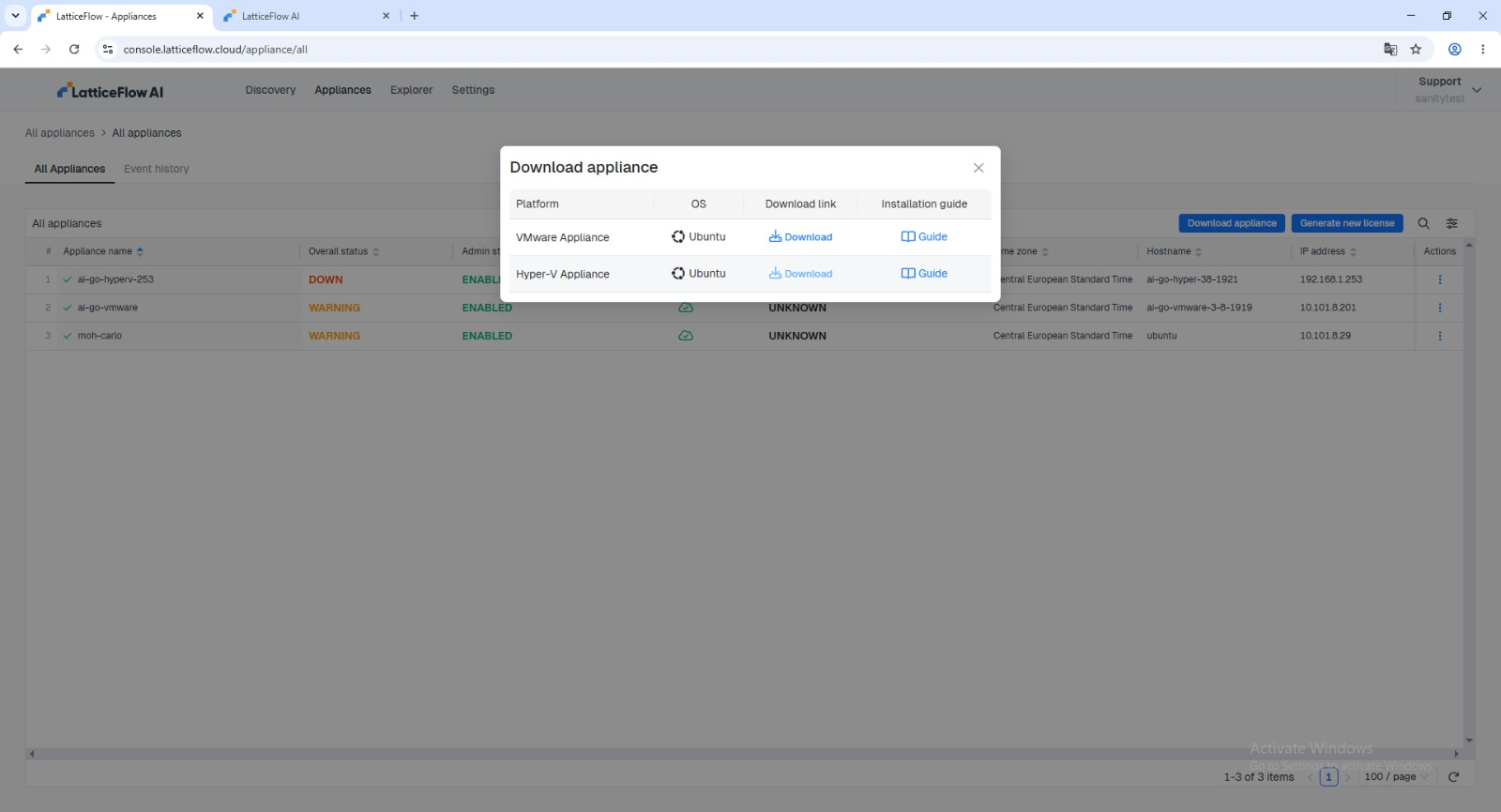
Save the downloaded ZIP to a location your Hyper-V manager can reach, then unzip it.
Step 2: Deploy the Hyper-V image
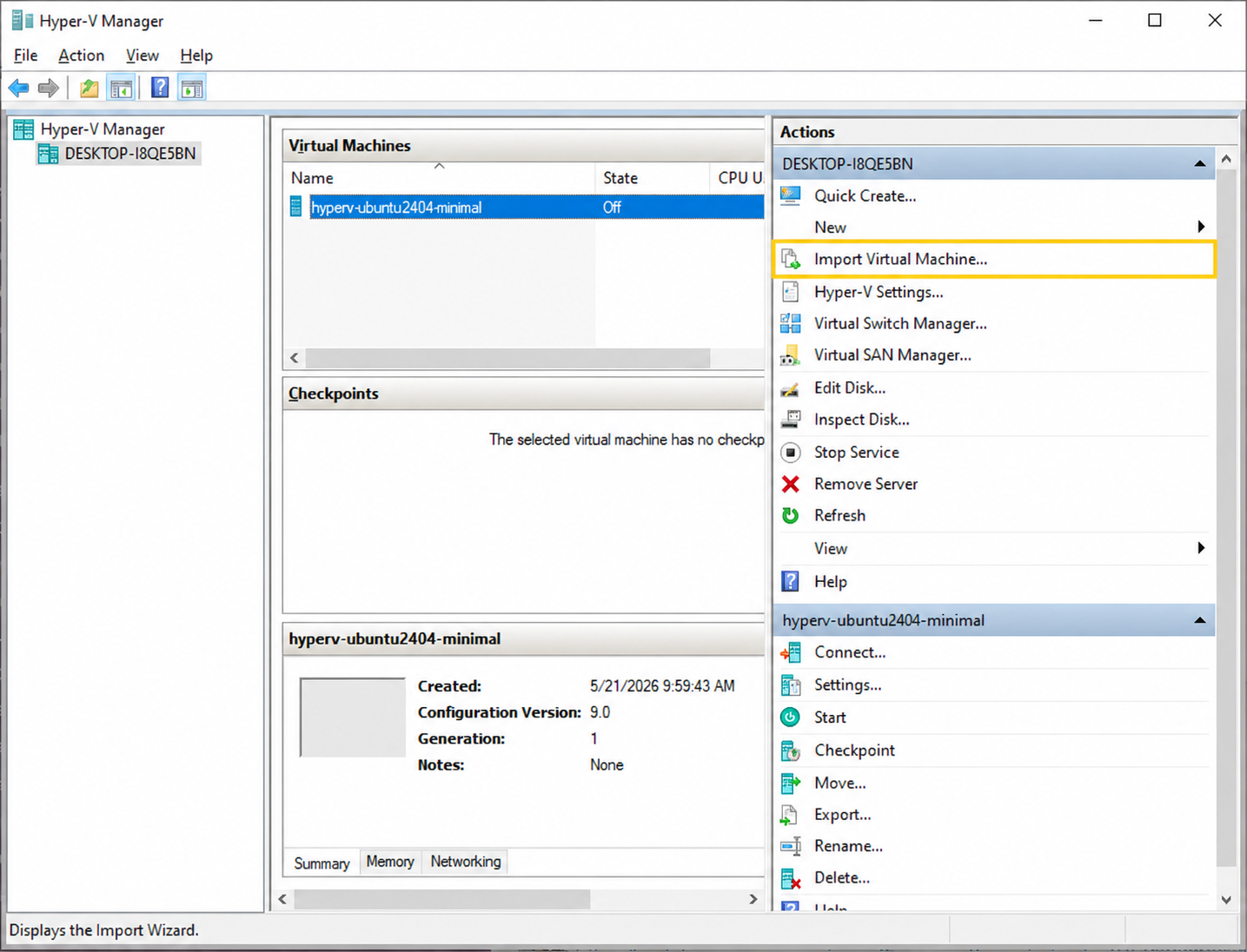
To deploy the virtual appliance, open Hyper-V Manager.
In the Actions pane on the right, select Import Virtual Machine.
Complete the wizard:
Step 2.1: Select the Image Folder
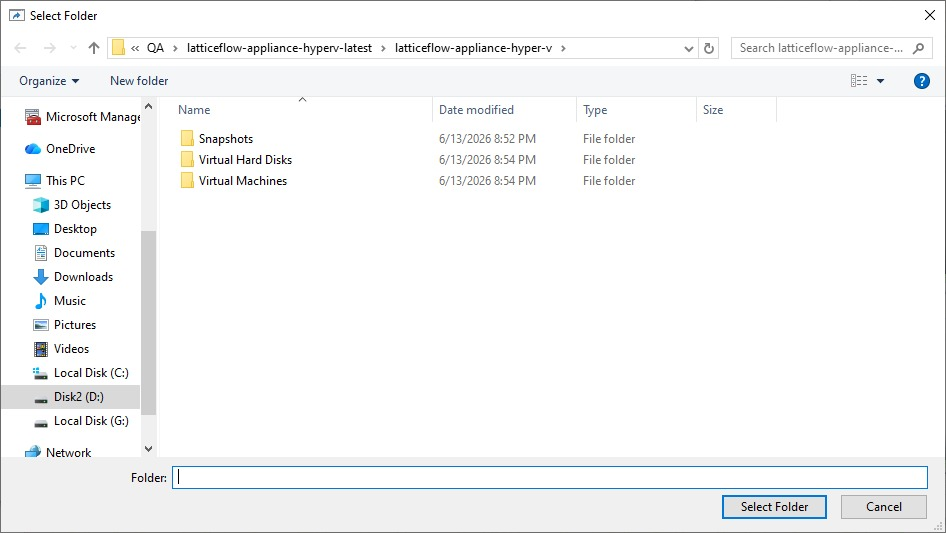
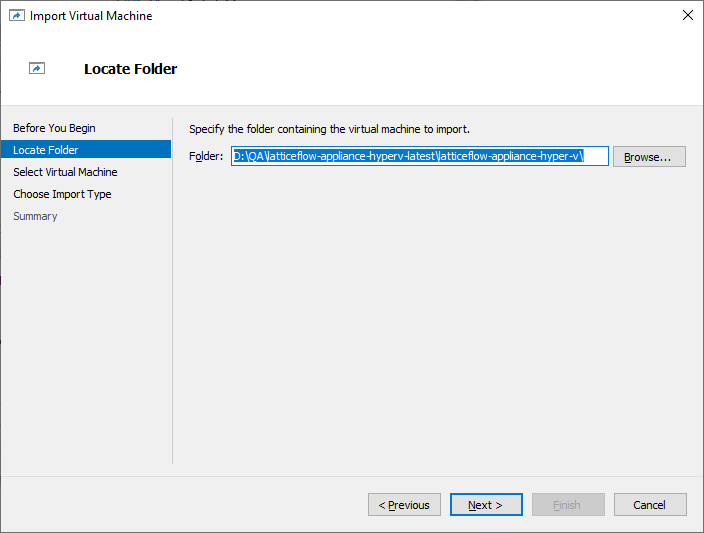
Browse to the location where the appliance files were extracted during the Appliance Download step.
Select the parent folder containing the Virtual Hard Disks and Virtual Machines directories, then click Next.
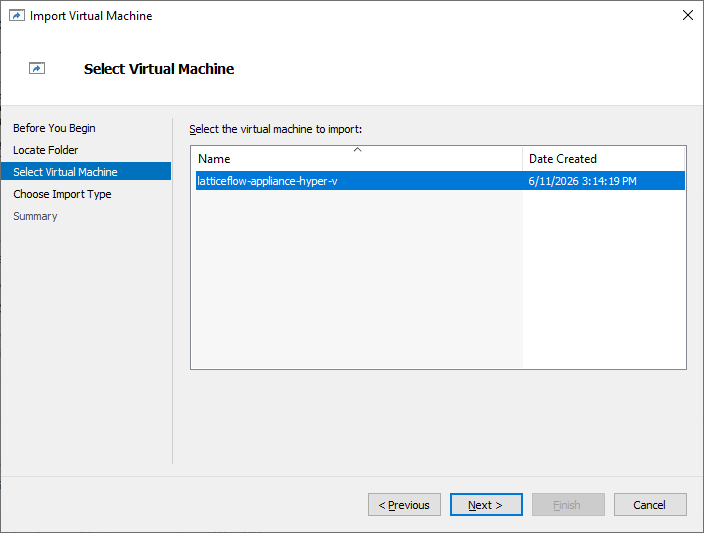
Step 2.2: Verify the Virtual Machine Details
Verify that the latticeflow-appliance-hyper-v virtual machine is listed, then click Next to continue.
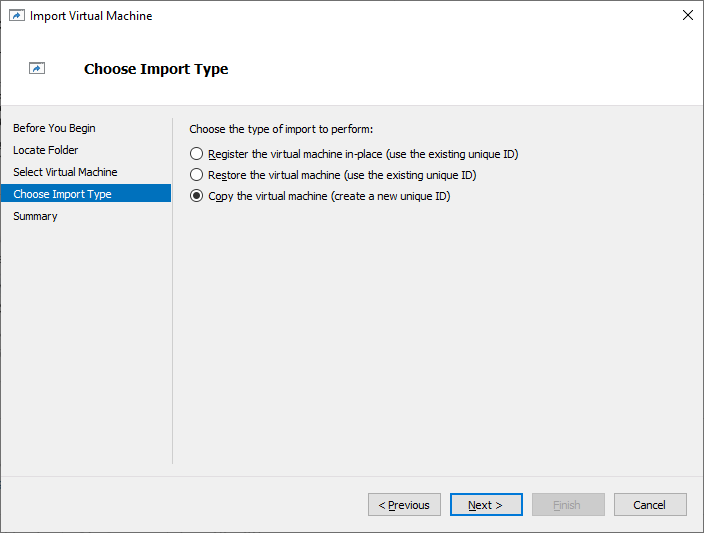
Step 2.3: Select the Import Type
Select Copy the virtual machine (create a new unique ID), then click Next.
This option creates a new unique identifier for the virtual machine and helps prevent conflicts with existing virtual machines.
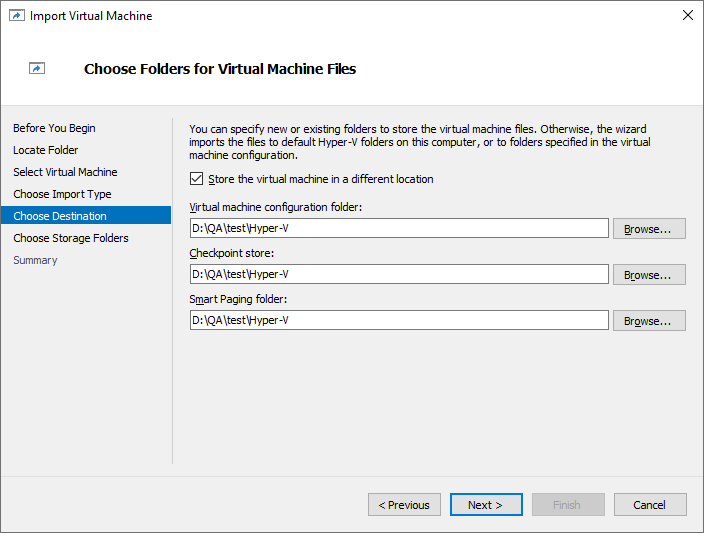
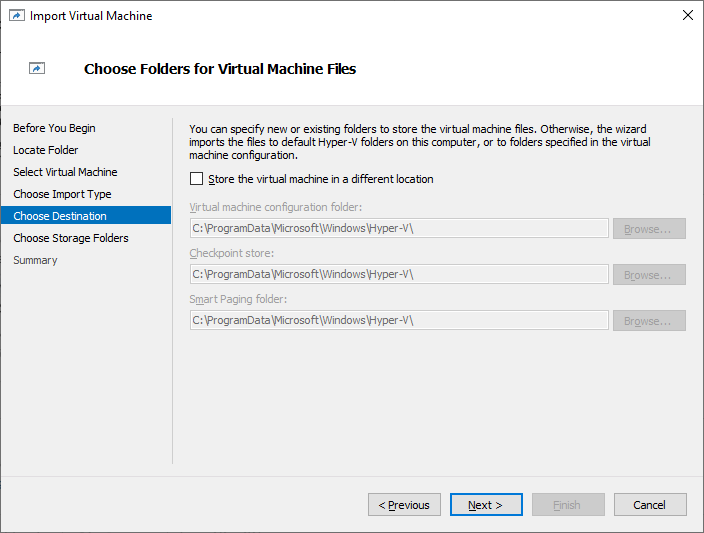
Step 2.4: Select Virtual Machine File Locations
Choose where the virtual machine files will be stored. You may either: use the default Hyper-V storage locations, or select custom locations for the virtual machine configuration, checkpoints, and smart paging files.
Once you have selected the desired storage locations, click Next.
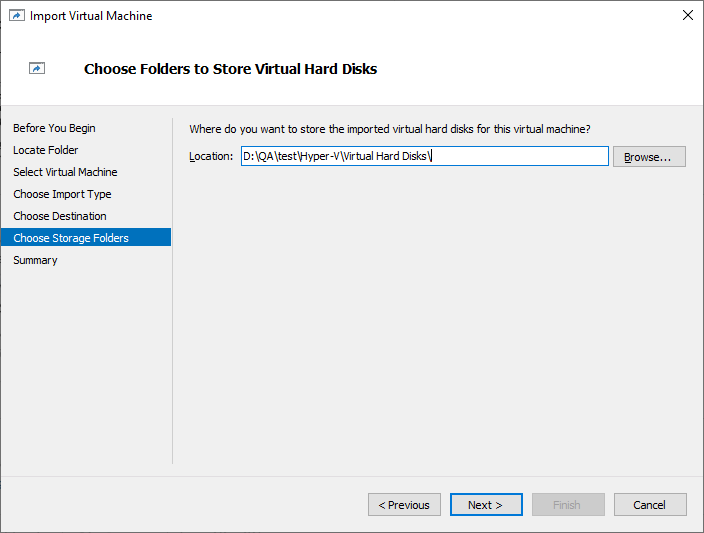
Step 2.5: Select the Virtual Hard Disk Storage Location
Choose the folder where the imported Virtual Hard Disks will be stored, then click Next.
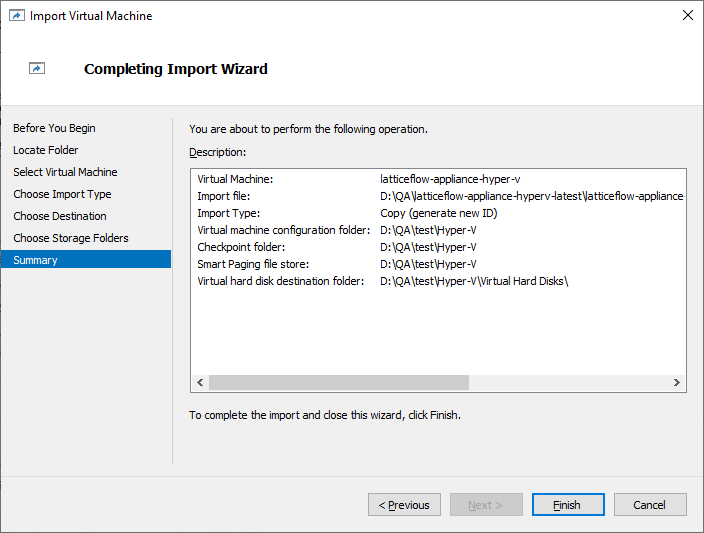
Step 2.6: Complete the Import
Review the import settings to ensure they are correct, then click Finish to import the virtual appliance.
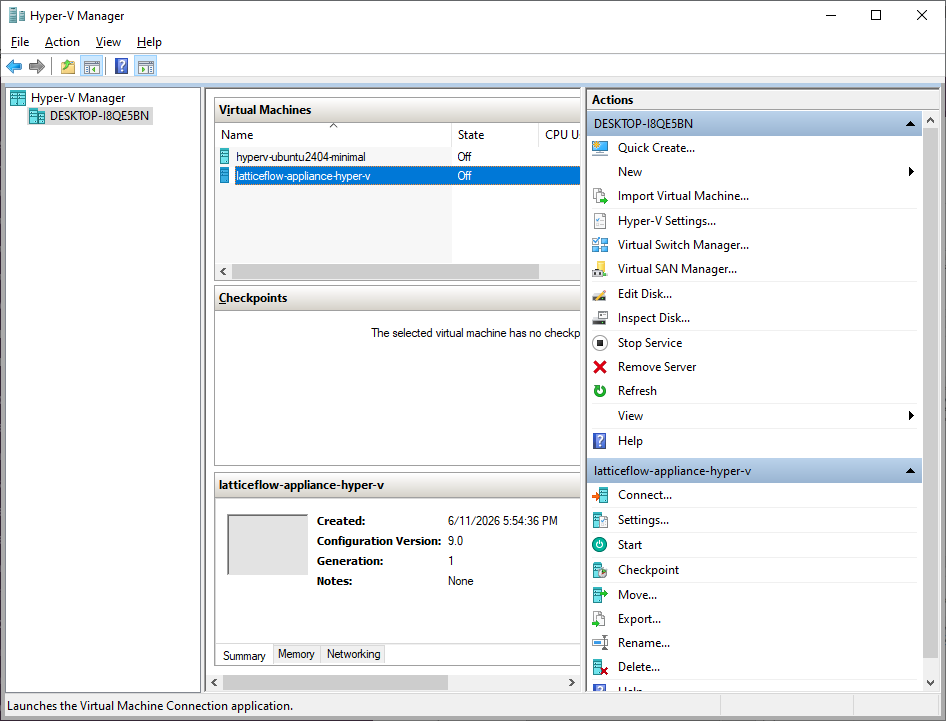
After the appliance is created, a confirmation appears and the new virtual machine is listed in Hyper-V Manager.
Step 3: Power On the Appliance
In the list of deployed virtual machines, select the appliance.
In the Actions pane on the right, click Start to power on the virtual appliance.
Right-click the appliance again, then select Power → Power On.
The appliance is now deployed. Next, configure the virtual appliance.