
Register the Appliance
After you configure the network, register the appliance to activate it. Registration links the appliance to the cloud Console and applies a license.
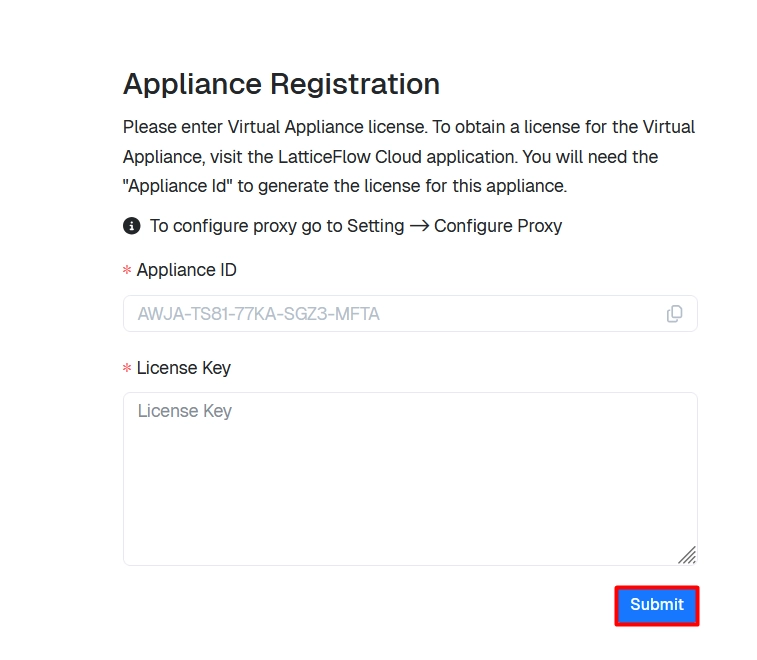
The appliance serves its own application UI at https://<appliance-ip>/, where you copy the Appliance ID and apply the license. You generate the license in the cloud Console.
Step 1: Copy the Appliance ID
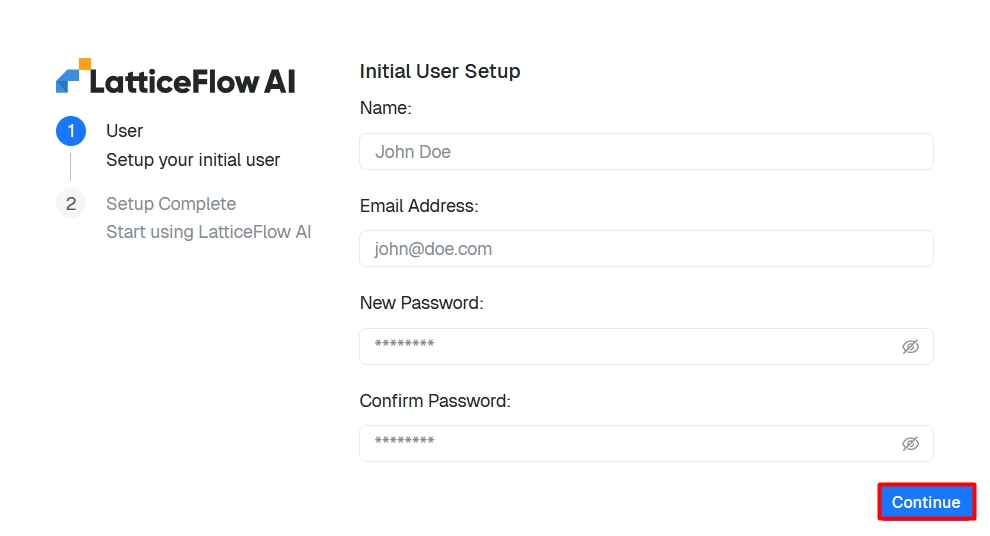
Open a browser and sign in to the application UI at https://<appliance-ip>/.
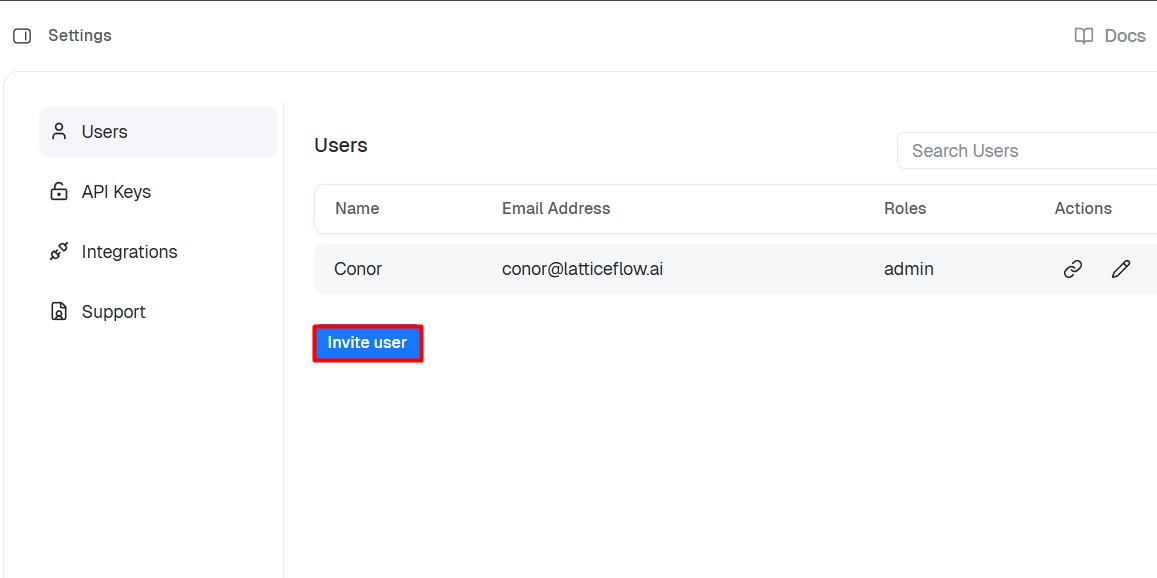
From Settings, you can invite additional users and assign each a role.
On first login, the appliance shows the registration screen. Copy the unique Appliance ID.
Step 2: Generate a License in the Cloud Console
Complete this step for each appliance in your environment.
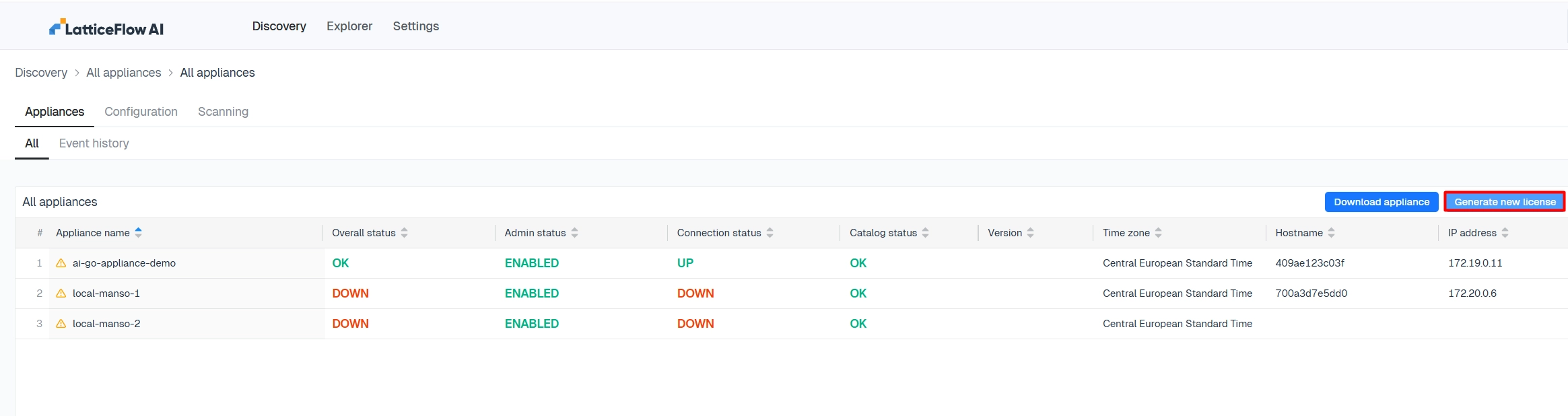
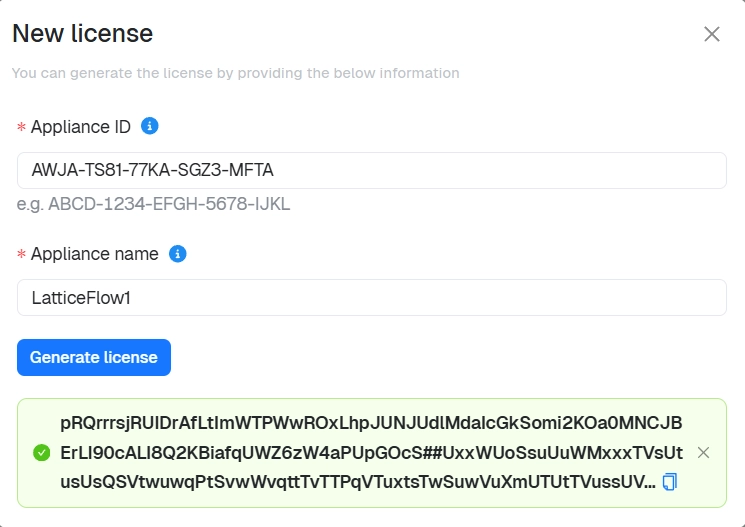
Open the cloud Console, go to the Appliances list, and select Generate new license.
Enter the Appliance ID you copied and a name for the appliance, then select Generate license. Copy the generated license key.
Step 3: Apply the License
Return to the application UI and paste the license key.
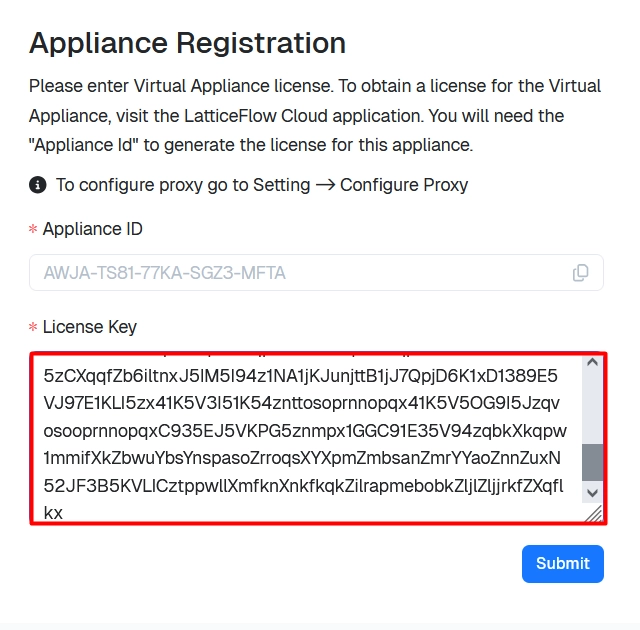
The appliance shows a summary of the registration. Confirm to complete it.
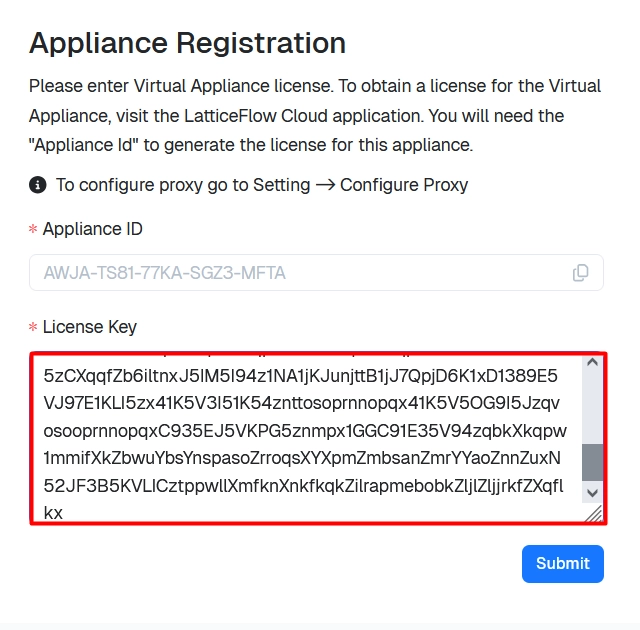
Step 4: Confirm Registration
The registered appliance appears in the Appliances list in the cloud Console.
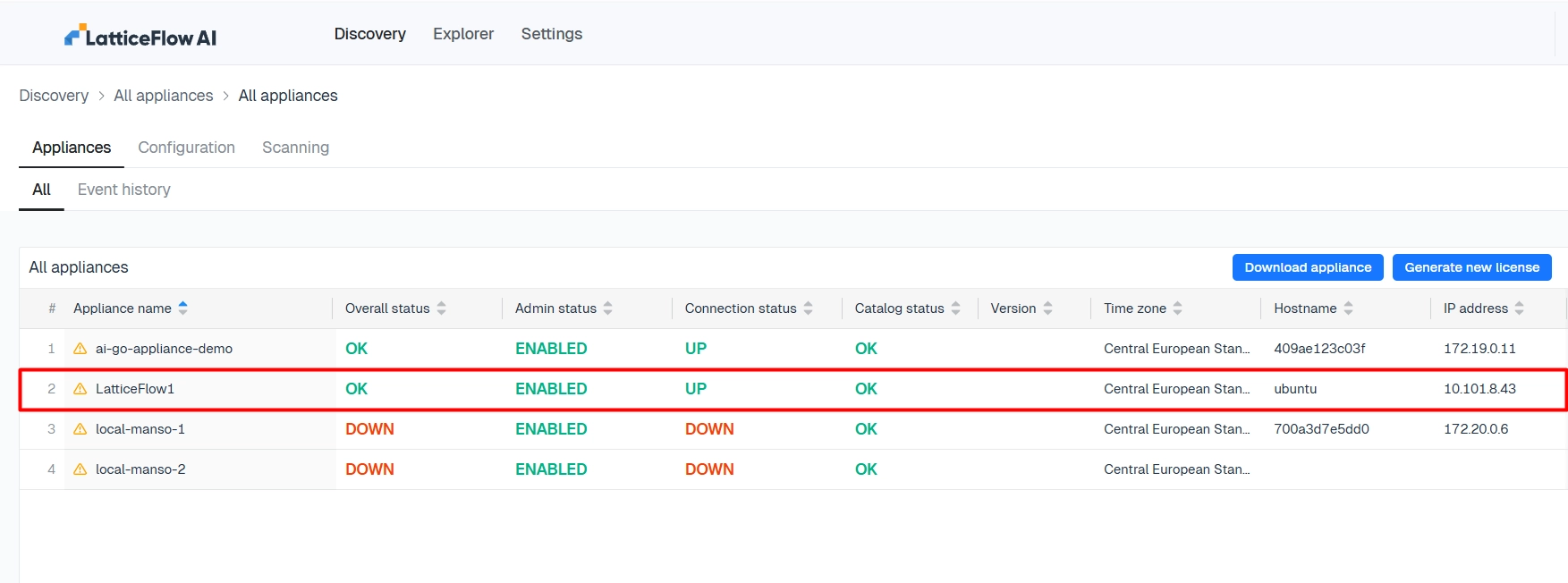
The appliance is now installed and registered. When an upgrade is available, upgrade the appliance to the latest version.